Manually edit any trip on the TripIt website.
Edit a trip's high-level details (trip dates, destination, trip image, trip name, etc.)
- From the Trips page.
- Click "Edit Trip Info" (bottom left of the trip).
- Make your updates.
- Click "Save".
Edit a trip plan
- Click the Actions button.
- Select "Edit Plan".

- Make your updates.
- Click "Save".
Add or edit additional details such as a traveler name.
- In the More Details section, click "Expand all" or "Show more".
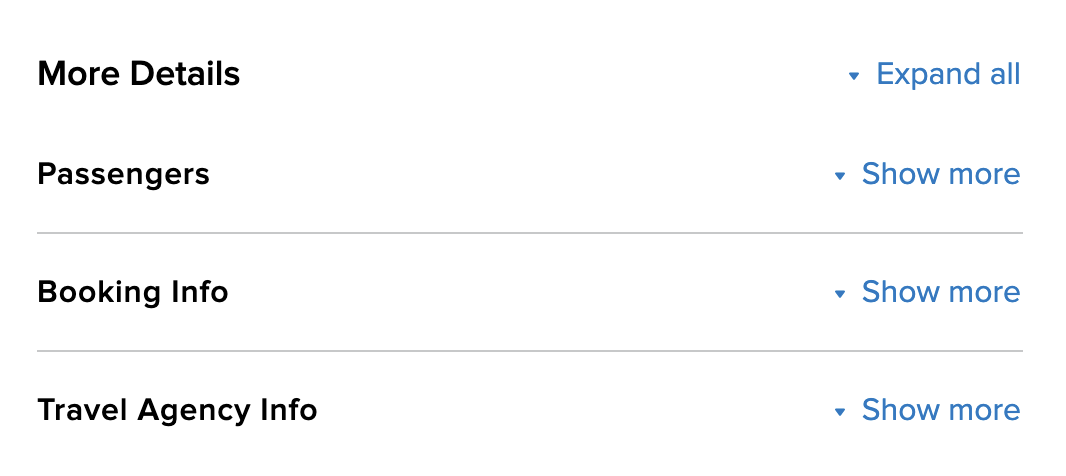
- Enter your additional information.
- Click "Save".
Delete a trip plan
- Click the Actions button.
- Select "Delete Plan".
Manually add a trip plan
- Select an existing trip from the Trips page.
- Click "Add a Plan".
- Select the type of plan you'd like to add such as a flight, lodging or activity.
Please note:
- The "Destination City" box must be city specific and draws from our database while the "Trip Name" box allows you to enter any text you wish.
- When making a manual entry, the key to placing the correct timezone is to make sure the address field is filled in with at a minimum, a city and country.
- To avoid being signed out when editing a trip, you just need to make incremental saves as you go along. Every time you save an update, the time out clock starts again.
Related Help Pages:
Was this article helpful?
That’s Great!
Thank you for your feedback
Sorry! We couldn't be helpful
Thank you for your feedback
Feedback sent
We appreciate your effort and will try to fix the article